Overview
Welcome back to “What’s Cooking in Business Central” series!
This blog explains the new financial report scheduling feature in Microsoft Dynamics 365 Business Central. It covers how to set up a schedule, choose export formats, and apply custom filters. You will also find answers to common questions about the feature.
What Is Financial Report Scheduling in Business Central
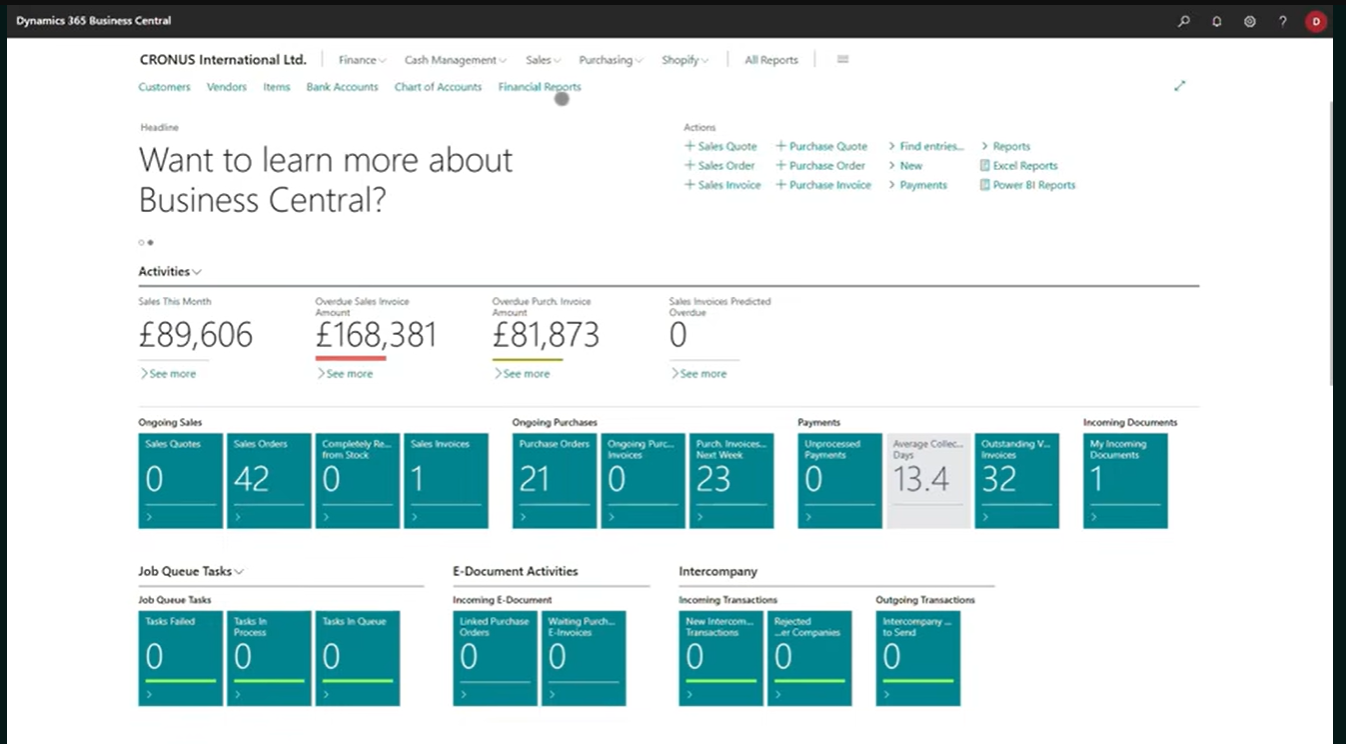
The Financial Reports area in Business Central, where scheduling starts.
Microsoft Dynamics 365 Business Central now lets you send financial reports automatically on a recurring schedule. Finance teams no longer need to run the same financial management reports by hand each month. Instead, you set up a schedule once and Business Central handles the rest.
The feature sits inside the financial reports area, under Definitions. From there, a new Schedules action opens the Financial Report Schedules page. This page holds everything you need to control when and how a report goes out.
For example, you might want the cash flow report sent on the first working day of each month. Because the schedule runs in the background, nobody has to remember to trigger it.
How to Set Up a Financial Report Schedule
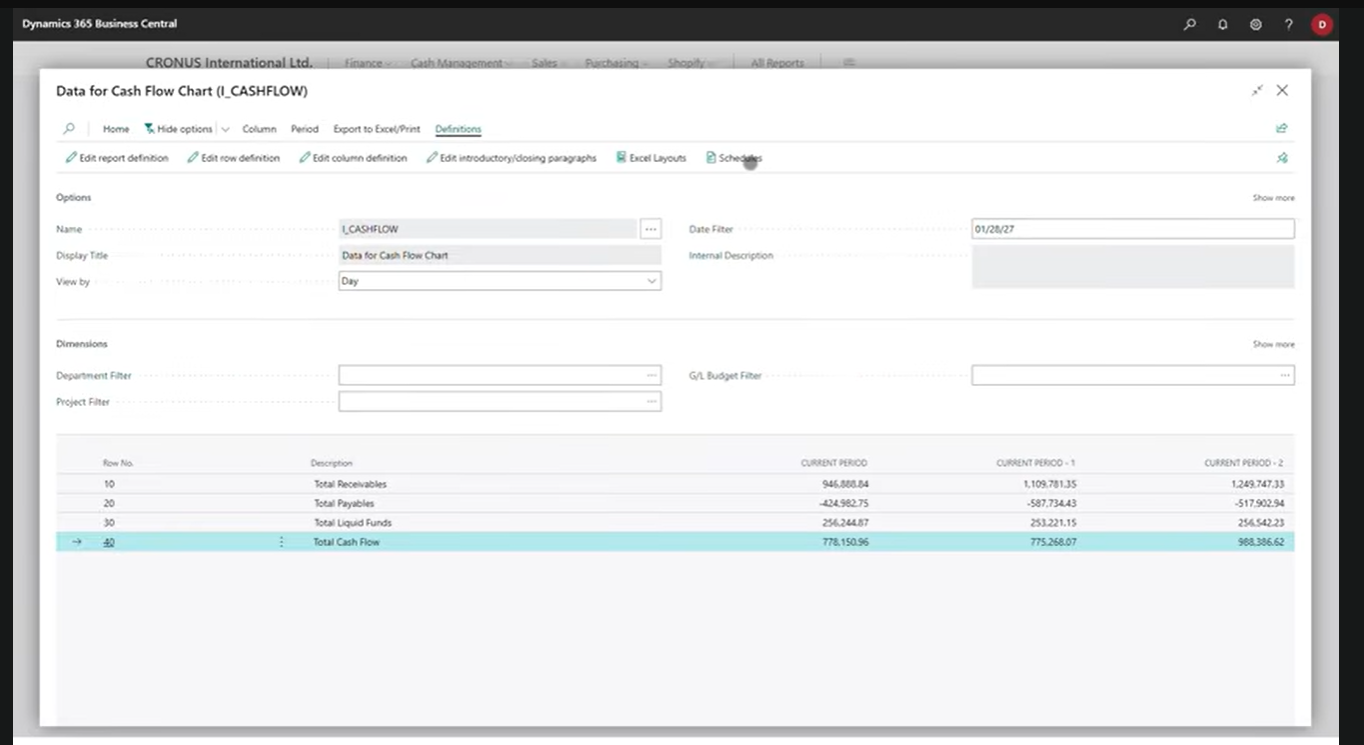
Open a financial report and select Schedules under Definitions to begin.
Setting up a schedule starts with picking a financial report, such as the cash flow statement. Next, you choose a next run date and time, which tells Business Central when to send the first report. After that, a recurrence formula sets the cadence, so the report repeats monthly, weekly, or on whatever pattern you need.
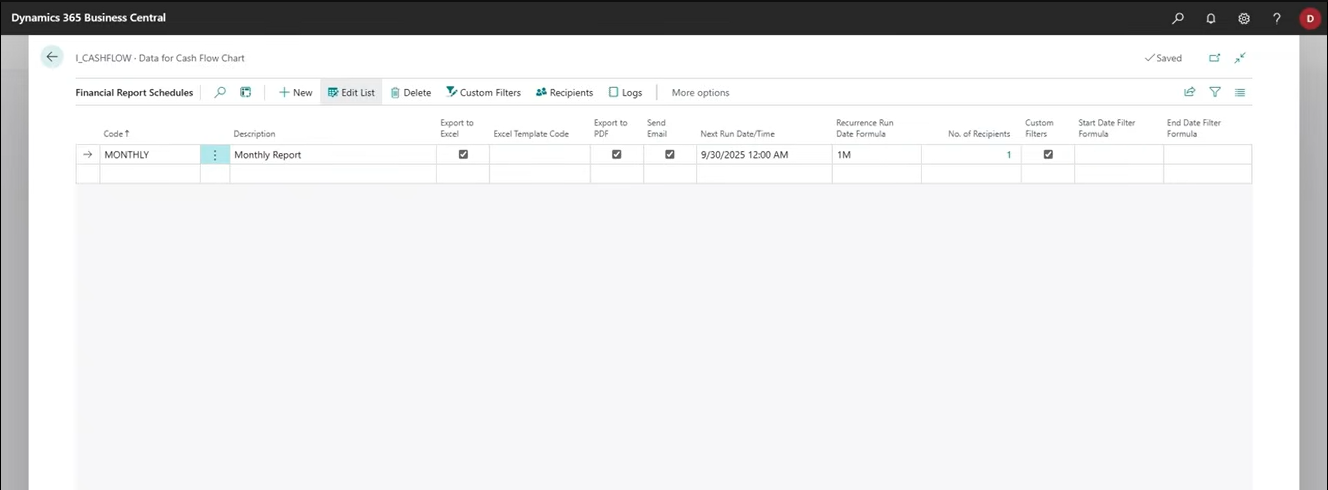
A monthly schedule set up for the cash flow report, with Excel, PDF, and email all enabled.
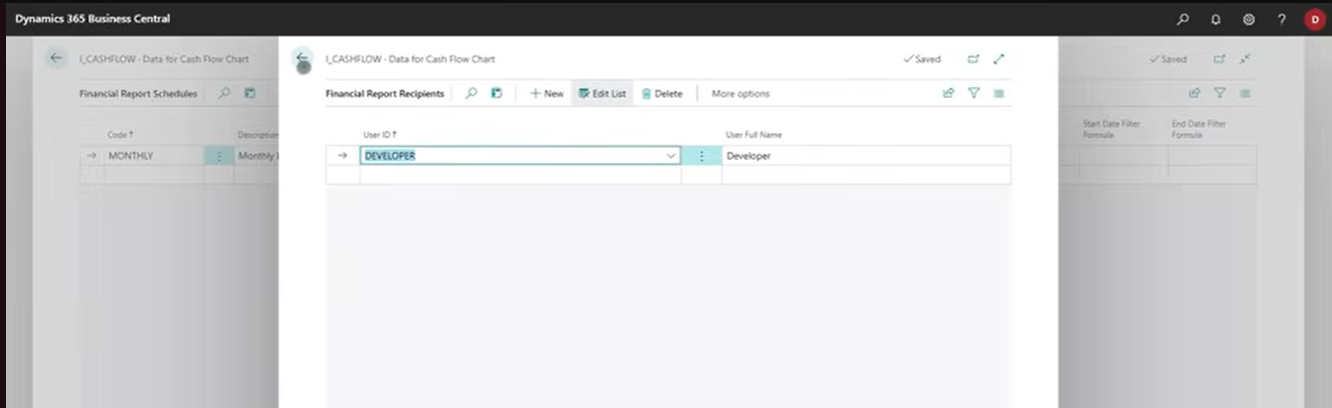
Recipients are managed on their own list, so a schedule can target one person or several.
You can also choose who receives the report. A schedule can target a single recipient or several people across the business. When you add new recipients later, the schedule updates without any extra configuration.
This setup mirrors the way many Business Central as your core finance system teams already structure recurring finance tasks. Once the schedule is live, Business Central takes care of generation and delivery from that point forward.
Choosing Export Formats and Email Delivery
Each schedule lets you select export to Excel, export to PDF, or both. When you choose either option, Business Central places the report in your report inbox in that format. This keeps a record inside the system, which makes it easy to check past reports later.
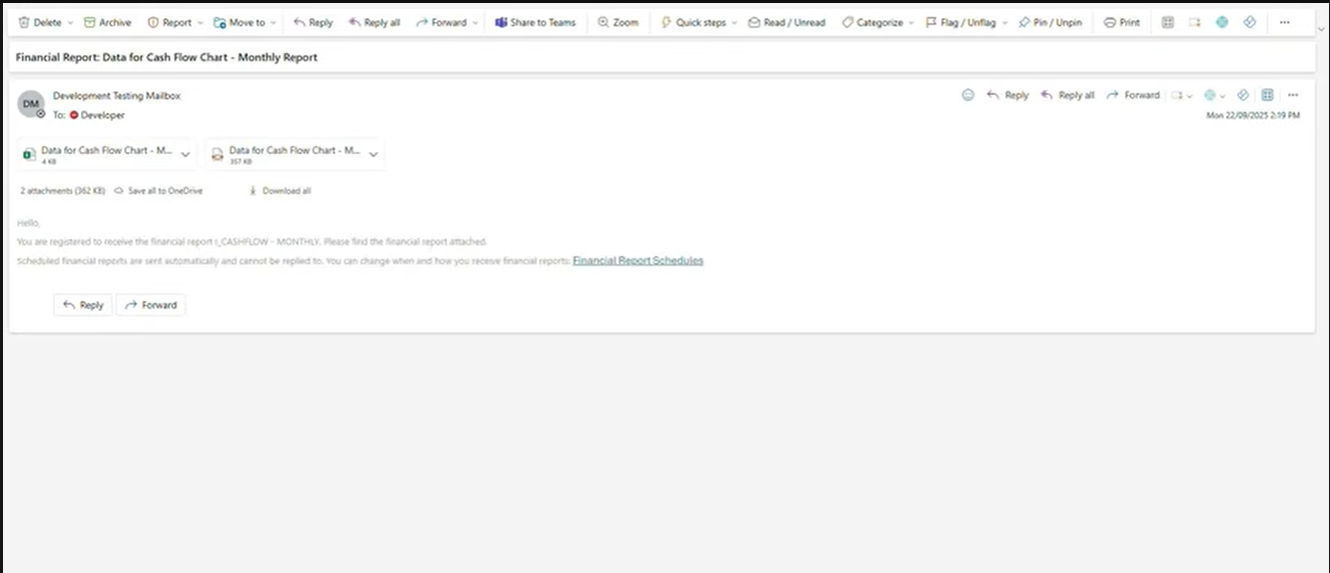
The recipient’s inbox, with the cash flow report attached in both Excel and PDF.
Selecting Send Email pushes the report straight to your nominated recipients’ inboxes as well. So a finance manager can receive the cash flow report by email without logging into Business Central first. Although the report still lands in the report inbox too, email delivery means stakeholders see it the moment it is ready.
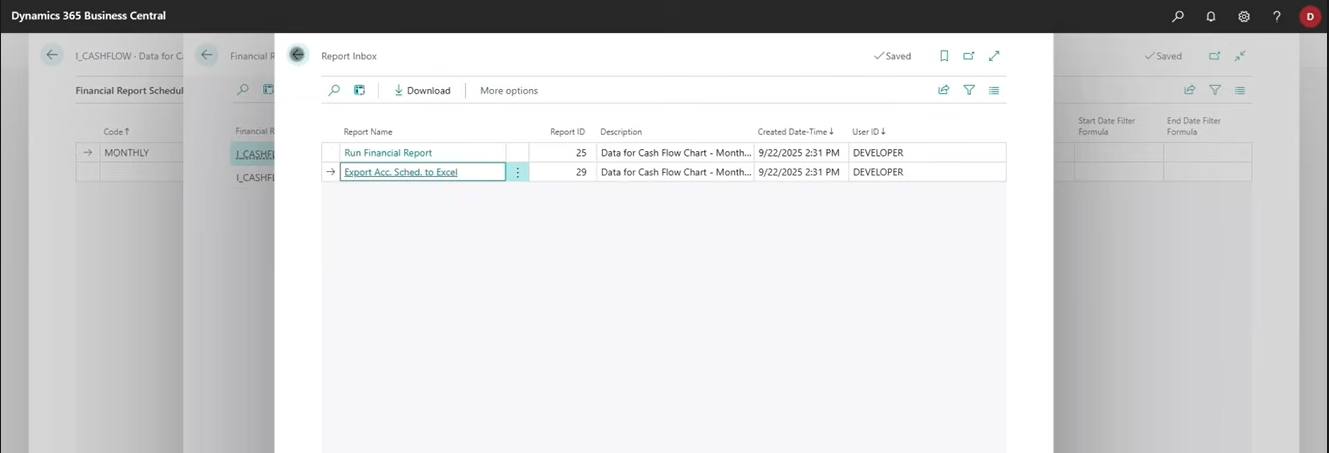
Every scheduled run also lands in the Report Inbox for reference inside Business Central.
This combination of formats suits businesses that need both an audit trail and fast visibility. For example, a board member might prefer the PDF by email, while the finance team keeps the Excel version for further analysis.
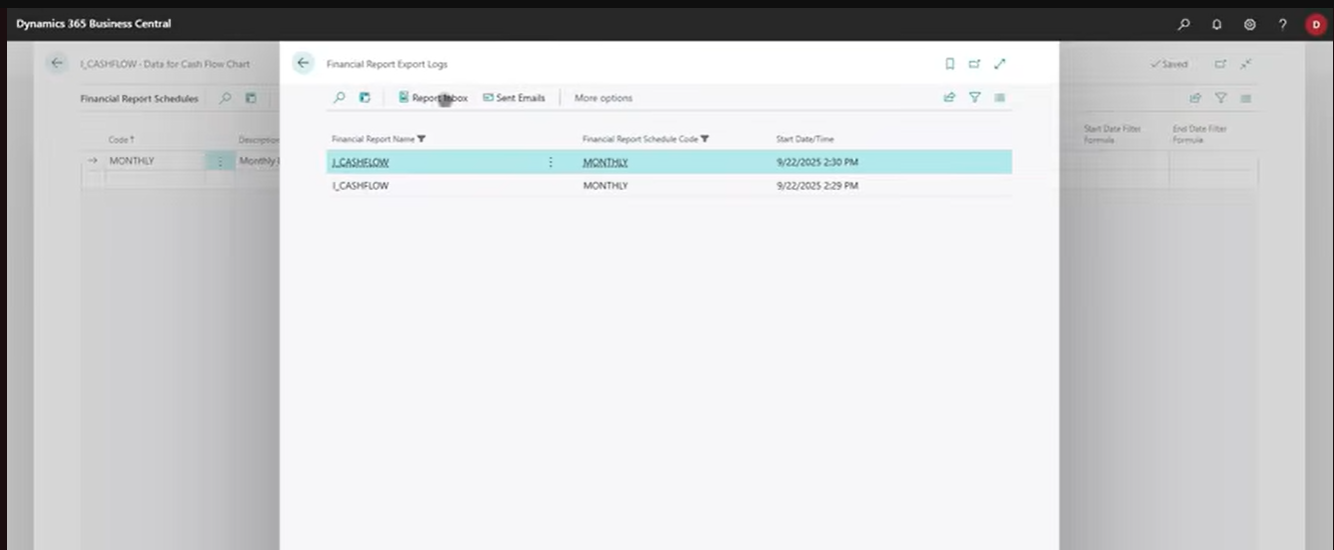
The Financial Report Export Logs record every run, so you can confirm when a report went out and to whom.
Each schedule keeps a history in these export logs. So if a recipient says they never received a report, you can check the exact run time and confirm what was sent.
Using Custom Filters for Each Schedule
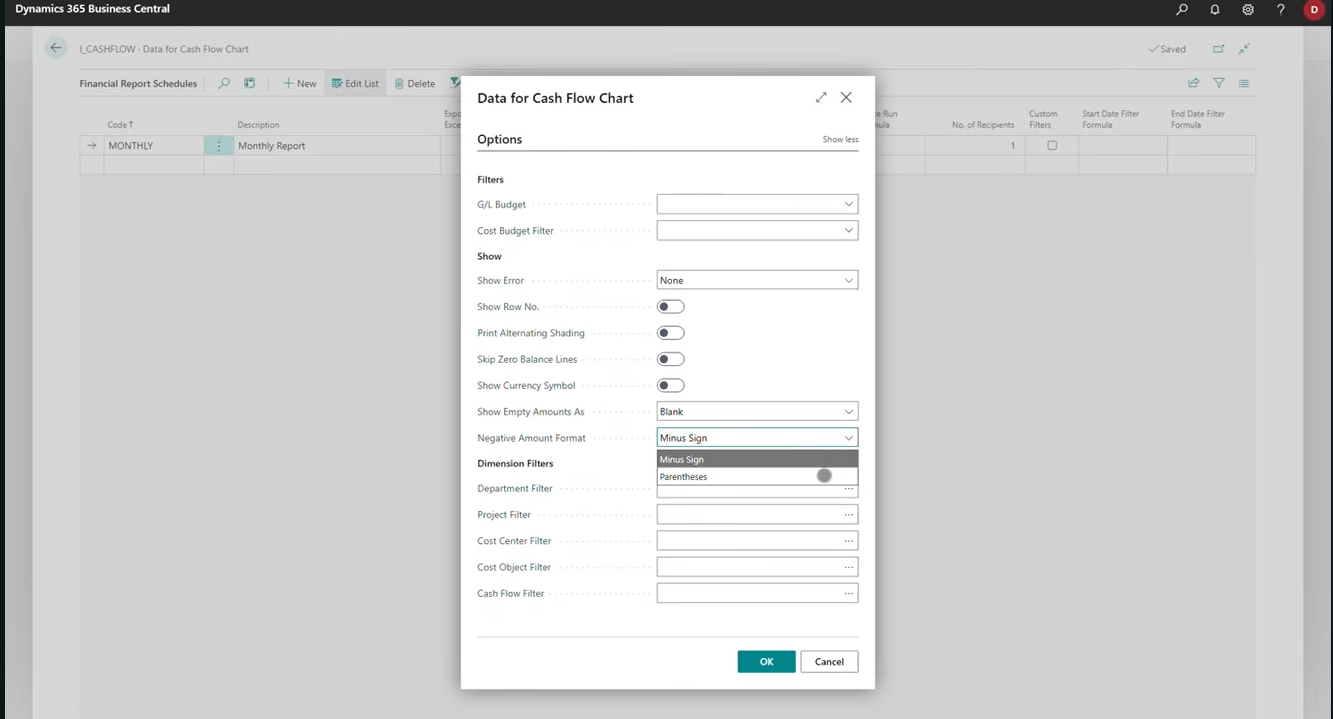
Custom filters open the familiar report request page, letting you change settings per schedule.
Not every schedule needs the same settings as the underlying report. Custom filters let you apply reporting options that are specific to one schedule, separate from the report’s defaults. Selecting custom filters opens the familiar report request page, where you can change details such as the negative amount format.
You can also set date filters that differ from the report’s standard date filter. Start and end date filter formulas let you define a rolling period, such as the previous month or quarter. Because these formulas recalculate automatically, you do not need to update the schedule each time it runs.
This level of control means one report definition can serve several audiences. A single cash flow report could run weekly for manufacturing and engineering operations with one filter set, and monthly for the board with another.
Why Automated Reporting Matters for UK Businesses
Manual financial reporting carries a real cost in time and risk. Finance teams reportedly spend a meaningful share of their month on report preparation rather than analysis. When reports run automatically, that time shifts toward reviewing numbers instead of compiling them.
This matters for manufacturing and engineering businesses managing complex cost structures across multiple sites. It also matters for any UK SME working towards tighter month end close and better Making Tax Digital compliance. The Wave 1 release that introduced this capability brought several other Business Central 2025 Wave 1 updates improvements to financial reporting too.
When schedules run consistently, finance leaders get reliable numbers at the same time each period. This consistency supports faster decision making across the business.
Get Started With Automated Financial Reporting
If you want help setting up financial report schedules in your Business Central environment, Tecvia can guide you through it. Get in touch with Tecvia to arrange a short consultation or a demo of the feature. Our consultants can also review your existing financial reports to recommend where automation will save the most time.