What is Dynamics 365 Business Central?
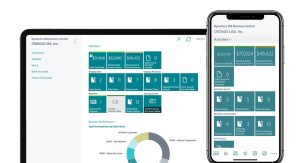
Dynamics 365 Business Central is a cloud-based ERP (Enterprise Resource Planning) system built for small to medium-sized businesses. It brings together financial management, sales, purchasing, inventory, and supply chain tools in one platform.
Microsoft hosts Business Central on its Azure infrastructure. This means your data stays secure and you can access the system from almost anywhere with an internet connection.
Why Your Login Method Matters
Business Central supports three login methods:
- Web browser (recommended for most users)
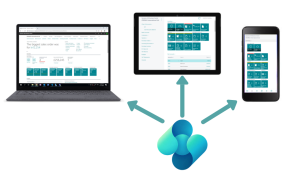 Windows desktop app
- iOS or Android mobile app
Each method uses your Microsoft 365 credentials. Your organisation may also require multi-factor authentication (MFA), which adds a second verification step at login.
When logging into Dynamics 365 Business Central users have several options as follows:
-
- Login via a web browser
- Login via the Windows App
- Login via IOS or Android App using a Tablet or Phone
Login Via A Web Browser
In this section, we will take a look at how to log in to Dynamics 365 Business Central via a Web Browser.

First, open the browser of your choice. Then Enter the Web Address.
In the address bar of your browser, type the URL for your Business Central instance. This URL will have been provided to you or you can try the link below.
Business Central Sign In | Microsoft Dynamics 365
Then Enter Your Credentials:
-
- Enter your username and password. These credentials should also have been provided by your organisation.
- Depending on your organisation’s setup, you may be required to use multi-factor authentication (MFA) for added security. If so, follow the prompts to complete the MFA process.
- Access Your Business Central Dashboard: After successful authentication, you should be taken to the Business Central dashboard, where you can access various modules and features based on your user role and permissions.
How to Log In via the Windows App
The Windows app gives you a dedicated desktop experience. It suits users who prefer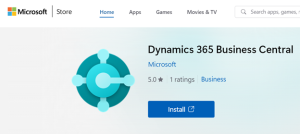 not to work through a browser tab.
First, install the app:
- Open the Microsoft Store on your Windows device.
- Search for “Dynamics 365 Business Central.”
- Select Get, then Install.
- Once installed, select Open to launch the app.
Then sign in:
- Enter your Microsoft 365 credentials on the login screen.
- Select the Business Central environment you want to access if prompted. You may have a Sandbox (test) environment and a Production environment.
- Complete MFA if your organisation requires it.
- Select your company and role if you work across multiple companies or have more than one role assigned.
- Select Sign In to reach your Business Central dashboard.You can also download the app directly from the Microsoft Apps page for Dynamics 365 Business Central. After installation, find the app in your Start menu for quick access.
How to Log In on iOS or Android
The mobile app lets you access Business Central on a smartphone or tablet. It is useful for field-based work or when you need to check data away from your desk.
Install the app first:
- Open the App Store (iOS) or Google Play Store (Android).
- Search for “Microsoft Dynamics 365 Business Central.”
- Download and install the official app.
Then log in:
- Open the app and tap Sign In.
- Enter your Business Central environment URL when prompted. Your administrator will have provided this.
- Enter your Microsoft 365 username and password.
- Complete MFA if required.
- Select your company if you have access to more than one.
- Tap Sign In to access your dashboard.
The mobile app supports Microsoft Entra ID (formerly Azure Active Directory) and Single Sign-On (SSO) if your organisation has configured these. Check with your IT team if you are unsure which authentication method applies to you.
Keeping Your Login Secure
Your Business Central login connects to sensitive business data. A few basic habits help keep it protected.
- Enable MFA if your organisation has not already made it mandatory.
- Do not share your credentials with colleagues.
- Log out when using a shared or public device.
- Contact your IT administrator straight away if you suspect your account has been compromised.
Microsoft Entra ID manages authentication for Business Central. Your administrator controls access levels, password policies, and MFA settings from there.
Troubleshooting Common Login Problems
If you cannot log in, one of the following usually explains it.
Wrong URL. Check the address bar. Business Central URLs follow the format businesscentral.dynamics.com or a custom domain your organisation has set up.
Expired password. Microsoft 365 passwords expire on a schedule set by your administrator. Use the self-service password reset link or contact your IT team.
MFA not set up. If your organisation has recently enabled MFA, you may need to register your authentication method before logging in. Your administrator can guide you through this.
No licence assigned. If you are a new user and cannot access any features, your administrator may not have assigned a Business Central licence to your account yet.
Find Out More
Once you are logged in, take time to explore your home dashboard. Business Central organises features into role-specific pages, so the layout changes depending on your permissions.
To find out more about what Business Central can do for your business, visit our Dynamics 365 Business Central page or get in touch with the team for a free consultation.