Overview
This post explains how the Sales Order Agent in Business Central turns customer emails into quotes and orders in 2026. You will also see how to set it up, how billing works and where its limits sit.
Key Takeaways
- The Sales Order Agent reads customer emails in a monitored Microsoft 365 mailbox and prepares quotes or orders in Business Central. Microsoft now lists it as generally available.
- The agent always creates a sales quote first. Designated users review and approve every outgoing message before it reaches a customer.
- The agent uses Copilot Credits, so you must set up consumption-based billing before you activate it.
- It identifies customers by matching the sender’s email address to the E-Mail field on contact cards, so accurate contact data matters.
- You need the Configure All Agents permission (ID 9665), a Microsoft 365 mailbox and billing in place before setup.
- An optional capable-to-promise setting lets the agent quote delivery dates for items you do not hold in stock.
What the Sales Order Agent in Business Central Does
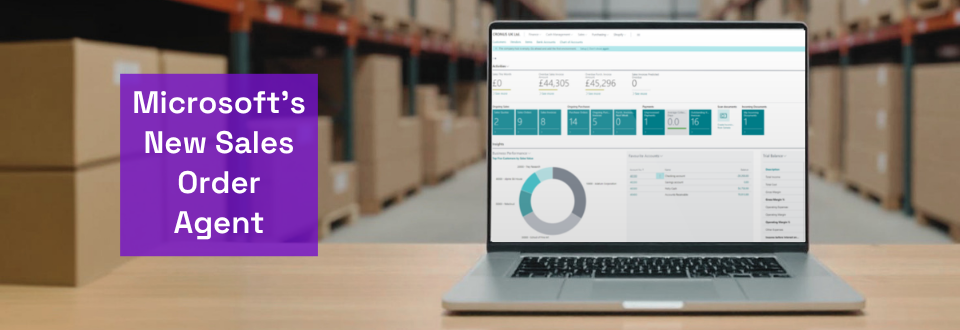
The Sales Order Agent is an AI worker that captures sales orders from email. It watches a mailbox you choose and reads each customer request. Then it prepares a sales quote or order inside Business Central.
It does more than read text. If details are missing, the agent emails the customer to ask. It also finds the customer record, checks stock and attaches the quote as a PDF.
The agent works much like a person would. It opens pages, enters data and reads validation messages in Business Central. Because of this, it can also find your custom fields and actions. Our Business Central features page shows how it fits with the rest of the system.
What Has Changed since the 2025 Preview
We first covered this agent in March 2025, when Microsoft announced it as a preview. Microsoft now lists it under Generally available on the Copilot & agent capabilities page. That is a clear step up from the version we described.
Several things are new. The agent now reads PDF and image attachments. It can calculate delivery dates for items you do not hold in stock. You can also run more than one instance in the same company.
Billing has changed too. The agent now uses Copilot Credits for its AI interactions, so you must set up consumption billing first. We cover this below. Our guide to agents in Microsoft Copilot explains how agents differ from assistive features, and our release wave 2 preview covers what comes next.
How the Agent Handles a Customer Request
The agent follows the same path for every request. Reviewers step in at set points.
- A customer emails your monitored mailbox and asks for a quote.
- The agent creates a task and adds a review step for the incoming request.
- Next, it finds the contact, matches the items and checks availability.
- It creates a sales quote and drafts a reply with the quote attached as a PDF.
- A reviewer approves the email and quote, and the agent sends both.
- The customer confirms by email, and the agent converts the quote into an order.
- A reviewer approves the confirmation email, and the agent sends it.
The agent always creates a quote first, even when the customer asks for an order. Quotes do not affect planning, reservations or cash flow forecasts, so they make a safe first step. If the customer asks for changes, the agent finds the quote and updates it.
How the Agent Finds Customers and Items
The agent identifies a customer by matching the sender’s email address to the E-Mail field on contact cards. It does not search by name or company. This stops someone from posing as a customer with a similar name.
Forwarded emails need care. The agent uses the forwarder’s address, not the original sender’s. If it finds no contact, you can create one, use another contact once or update an existing contact’s email.
For items, the agent tries three layers. First, it looks for exact matches on item number, GTIN or cross-reference. Second, it ranks candidates by attributes such as colour or size. Third, it falls back to a broader search across all items.
Your item data therefore matters. Better descriptions, attributes and categories help the agent find the right product. New data can take up to 15 minutes to become searchable. Distribution and Wholesale businesses with large catalogues should prioritise this clean-up.
Delivery Dates with Capable-to-Promise
Capable-to-promise is an option, and it is off by default. When you turn it on, the agent can promise a delivery date for items you do not hold in stock. It uses Business Central’s own order promising logic.
For example, a customer might ask for 10 units while you hold six. The agent works out when you could produce or source the other four. Then it puts specific shipment dates in the quote.
The calculation depends on your setup. It uses the work date, the Order Promising Setup offset, your safety lead time and each item’s lead time. Manufacturing and Engineering teams should check these values before they enable the option.
Before You Start: Requirements
Four requirements apply before you activate the agent.
- Permissions: you need the Configure All Agents system permission (ID 9665) to create an agent. The AGENT – ADMIN permission set grants it.
- Mailbox: you need a Microsoft 365 user or shared mailbox set up as an email account in Business Central.
- Access: whoever activates the agent needs Full Access and Send as permission on the mailbox, unless it is their personal mailbox.
- Billing: you must configure consumption-based billing in the Business Central admin center.
Exchange can take a few hours to apply mailbox permissions, so plan for that. Also review your contact list, because contacts without an accurate email address need manual help on every request. In a sandbox, turn on the Allow HttpClient Requests toggle in the extension settings.
How to Set Up the Sales Order Agent
Setup takes one sitting once your requirements are ready. Follow the Microsoft setup guide for the full detail.
- Look for the Sales Order Agent icon in the top navigation menu of your role center. If it is missing, turn it on from the Copilot & agent capabilities page.
- Select the icon and choose Activate. On the configuration page, turn on the Active toggle.
- Set the language, region and time zone for outgoing emails and task messages under Language and region.
- Choose Manage user access and add the people who will review the agent’s work. Tick Can Configure for anyone who needs to change settings.
- Turn on Monitor and process emails and set the Mailbox. Set a Folder if you want the agent to watch a subfolder.
- Work through the option cards, then select Update.
The setup page also includes a Try it out section. You can create a test task with a sample message and no real email. The agent processes it exactly as it would a real request, so use it before you point the agent at a live mailbox.
Choose How Much Control to Keep
You decide how much the agent does alone. By default, a person reviews the first message in a conversation from a registered sender. A person reviews every message from an unregistered sender.
Two settings shape the end result. Leave Send quotes for confirmation on if you want customers to approve quotes first. To go straight to orders, turn it off and turn on Make orders from quotes.
You can also hand over only part of the job. Turn on Review quotes when created and updated, and turn off Send quotes for confirmation. The agent then stops after it creates the quote, so your team can apply custom pricing or discounts.
Control who the agent listens to as well. Create a subfolder, point the agent at it and use Outlook rules to move approved senders’ emails there. Emails from unknown senders stay in the inbox, and the agent never sees them. For different customer groups, you can run several instances with their own mailboxes and rules.
Understand Billing and Copilot Credits
The agent uses Copilot Credits for its AI interactions, and Microsoft charges based on how complex each interaction is. You must set up consumption-based billing for your environment before you use the agent.
Credits can run out. When they do, the agent stops processing new emails but stays active. Once credits return, the agent processes every email that piled up, which can use a large share of your renewed credits.
You can protect yourself in three ways. Set a daily email limit on the Manage mailbox card. Monitor usage in the Power Platform admin center. Deactivate the agent when you do not need it, and clear stale emails before you reactivate it.
Limits to Know Before You Switch It On
The agent monitors Microsoft 365 mailboxes only. Like other Copilot features, it runs on Business Central online only. Microsoft validates it for Danish, English, French, German, Italian, Spanish and Brazilian Portuguese, including several regional variants. Other languages may work, but quality can vary.
A relevance check filters out messages outside the agent’s scope. Offers to sell, discount requests and attempts to access internal data do not trigger processing. The agent also ignores non-sales attachments, such as terms and conditions.
It runs under its own user account and does not inherit the reviewer’s permissions. Installed extensions can add logic that needs extra permission sets. If a task says the agent needs additional permissions, an administrator must assign the narrowest suitable set.
What This Means for Your Business
The Sales Order Agent suits businesses that take orders by email and spend hours keying them in. It keeps a person in charge, because reviewers approve every outgoing message.
Consider an illustrative calculation. Say your team handles 40 emailed quote requests a week and each takes 15 minutes to key. That adds up to 10 hours of keying every week. Real figures will differ, so use your own numbers to size the opportunity.
Start small. Clean your contact emails, test with the Try it out feature and keep review on for every message. Then relax the controls as your team gains confidence.
Get Help Setting Up the Sales Order Agent
Tecvia helps UK businesses set up Copilot agents, configure permissions and plan billing. Get in touch with Tecvia to book a free review of your order process.
You can also explore our Copilot capabilities, or see how our implementation approach supports phased rollouts. Our guide to Chat with Copilot and our post on AI built into Business Central show where else AI can help. Owners and sales leaders may find our page for Managing Directors and Managers useful too.