Overview
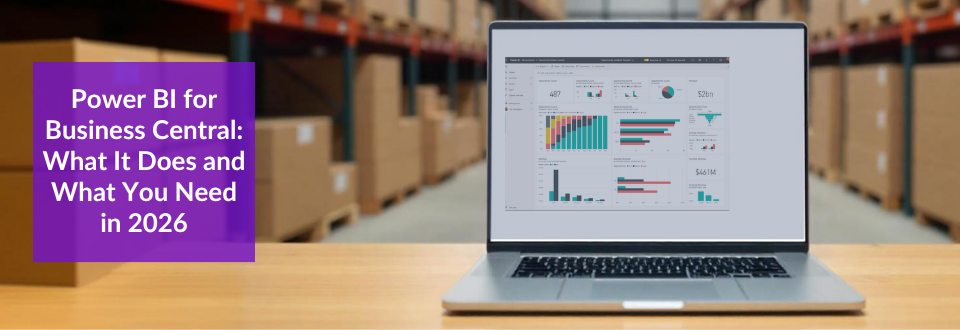
This post explains what Power BI does and how it works with Business Central in 2026. It also sets out which licences you need, which is where many projects stumble.
Key Takeaways
- Power BI turns data from Business Central, Excel and other sources into reports and dashboards that you can share.
- Business Central users get a free Power BI licence, but it cannot install Microsoft’s Business Central Power BI apps or share reports.
- The apps need Power BI Pro, or Premium or Fabric capacity, for whoever installs them, refreshes them or views them.
- Data updates when it refreshes, so it is near real time at best, not instant.
- Start with one department and a handful of questions, then expand.
- Plan licences, data refresh and access rules before you build dashboards.
Power BI for Business Central: What Has Changed since 2025
The original post was an overview with a few claims that went too far. Each claim got a recheck against Microsoft’s documentation.
We corrected the licence advice, because a free licence does not cover the Business Central Power BI apps. The word “real-time” now gives way to an honest note about refresh, and we toned down the hype. A new licence table and a section on Microsoft Fabric add the missing detail.
What Is Power BI?
Power BI is Microsoft’s reporting and analytics tool. It connects to Excel files, cloud services, databases and systems such as Business Central. Then it turns that data into reports and dashboards that are easy to read.
Think about your current situation. Your sales data lives in one system, your finances in another and your stock in spreadsheets. Power BI brings those sources together, so you see one picture of the business.
Teams can share reports in a click, and you can schedule reports to arrive on a set day. The data updates each time it refreshes, so how often you refresh decides how current your dashboards feel.
The Five Components of Power BI
Power BI is a family of tools, not one product. This table shows what each part does.
| Component | Purpose | Best for |
|---|---|---|
| Power BI Desktop | Create reports and dashboards | Analysts building visualisations |
| Power BI Service | Share and collaborate online | Teams viewing and discussing data |
| Mobile apps | Access data on a phone or tablet | Executives checking KPIs on the move |
| Paginated Report Builder | Create formatted, printable reports | Finance teams that need statements and PDFs |
| Power BI Report Server | Keep reports on-premises | Companies with strict data rules |
How Your Teams Use Power BI
Operations Managers
You can check stock levels and production progress on a dashboard, instead of waiting for a weekly report. The figures are as current as your last refresh, so check how often it runs.
Sales Directors
Your mobile app shows quota progress and lead detail, so you can drill into the numbers before a client meeting.
Finance Teams
You can pull data from several systems into one view, and you can produce formatted reports that print well. Our post on the core finance system explains the finance features in Business Central.
The Power BI Workflow
Most projects follow the same four steps.
- Connect your data sources in Power BI Desktop.
- Build your reports and charts.
- Publish them to the Power BI Service.
- Share them with your teams, who view them online or on mobile.
Power BI and Business Central: What You Get
Microsoft publishes Power BI apps for Business Central on AppSource. Each app covers a functional area, and it includes a semantic model, reports and pages that embed the reports in Business Central. These apps became generally available in version 25.1.
The apps are free to install and use, but each person involved needs the right Power BI licence. We explain that below, because it catches many businesses out.
You can also build your own reports with Power BI Desktop. Microsoft says the source files for the apps have been available since version 26.2, so your team can adapt them. Our Power BI for Business Central page shows how we build dashboards.
Three Ways to Access Your Data
| Access method | Best for | Key benefit |
|---|---|---|
| Power BI Service | Deep analysis and custom dashboards | Full Power BI functionality |
| Embedded in Business Central | Quick insights without switching systems | Reports appear inside your work |
| Mobile apps | Decisions on the move | Access from anywhere |
Power BI Licences for Business Central Users
According to Microsoft’s setup guide, Business Central users get a free Power BI licence. Users who view Business Central data in Power BI also need a paid Business Central licence, such as Essentials, Premium or Team Member.
The free licence has limits. Microsoft’s app guide says the person who installs the apps needs Power BI Pro, and so does each person who accesses the reports. Power BI or Fabric Premium capacity is an alternative to Pro licences.
| What you want to do | Free licence | Pro or capacity |
|---|---|---|
| Build your own reports in your personal workspace | Yes | Not required |
| Embed your own reports in Business Central | Yes | Not required |
| Install the Business Central Power BI apps | No | Required |
| Share reports with colleagues | No | Required |
| Refresh and view the Microsoft apps’ reports | No | Required |
Microsoft’s app FAQ gives the full detail. Licensing and prices change, so confirm the latest terms before you buy.
Setup Requirements by Role
Your tasks differ by role, so plan who does what.
- Business users: you need a Power BI account and the right licence to view shared reports. Check with your administrator before you assume you have cover.
- Administrators: you control organisation-wide settings, decide which data to share and manage access across both systems.
- Report creators: you use Power BI Desktop to build custom reports from Business Central data, then publish and share them.
Microsoft Fabric and Business Central
Power BI now sits within Microsoft Fabric, Microsoft’s unified data and analytics platform. Fabric stores data in OneLake, and Power BI turns that data into reports.
Large organisations benefit most, because their IT teams manage one platform while business users keep the Power BI tools they know. Microsoft has also announced native mirroring of Business Central data into Fabric. Our post on Business Central Fabric mirroring explains what it means for your reporting.
On-Premises vs Cloud
Power BI Report Server handles reports that must stay behind your firewall. You build reports in a similar way, and users open them in a browser or on mobile.
Business Central online comes ready to connect to Power BI. On-premise Business Central needs extra set-up first, according to Microsoft. If you plan to move to the cloud, test your reports before you switch. Our post on on-premise vs cloud ERP covers the wider decision.
Questions to Ask Yourself
- How much time does your team spend hunting for data?
- Which decisions are you delaying because you lack clear information?
- How many systems do you check to understand performance?
If your answers worry you, a joined-up reporting platform can help. Business Central’s own Copilot also helps with quick analysis, as our post on ten ways Copilot helps SMEs explains.
Getting Started
- Identify your most critical data sources.
- Map out who needs which information.
- Decide whether cloud or on-premises fits your security needs.
- Check the licences you need, using the table above.
- Start with one department, prove the value, then expand.
Our post on 13 Business Central tips and tricks shows other quick ways to get more from your data.
What This Means for Your Business
Power BI gives you a clearer view of your business, but it works best when you plan the data and the licences first. The reports are the easy part.
Start small, check your licences and agree who owns each report. Then your dashboards will stay accurate, and your team will trust them.
Get Help with Power BI
Tecvia helps UK businesses plan and build Power BI reporting on Business Central data. We review your data, design dashboards and train your teams. Get in touch with Tecvia to book a free consultation.
You can also explore our Power BI for Business Central page and our Business Central features, or learn how our implementation approach works. Finance leaders can visit our page for Finance Directors and Managers. See how Business Central supports your sector. We serve Manufacturing and Engineering, Food and Beverage, Distribution and Wholesale, Life Sciences, and Medical Devices and Technology businesses.