Overview
Welcome back to What’s Cooking in Business Central series!
In this exciting new series, both internal and external Business Central developers will showcase some of the latest product features and additions that are part of the upcoming major release.
Spotlight on the New Sales Price List Feature
With every Business Central major release, a wealth of new features and improvements are shared with users. While the bigger changes often get the spotlight, sometimes it’s the smaller updates that have the most impact. That’s why we’re bringing you What’s Cooking, a series designed to highlight these smaller yet highly valuable updates.
In this blog post, we’re showcasing a particularly exciting feature: the new ability to edit sales price lists in Excel. This functionality will be included in the Business Central 2025 Wave 1 release, and it’s a great tool for anyone looking to streamline their price editing process.
Let’s dive into the demo!
The Demo: Edit Sales Price Lists in Excel
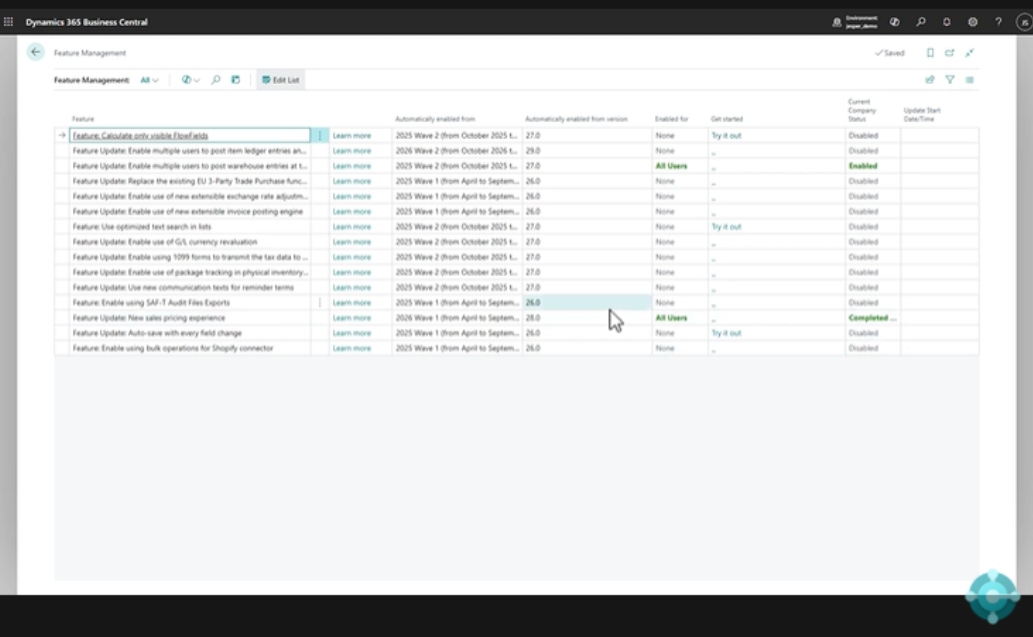
First, let’s walk through how this new feature works. To enable the new sales price experience, you’ll need to head over to Feature Management in Business Central. Once there, you’ll find the option labelled New Sales Price Experience simply ensure that it’s enabled.
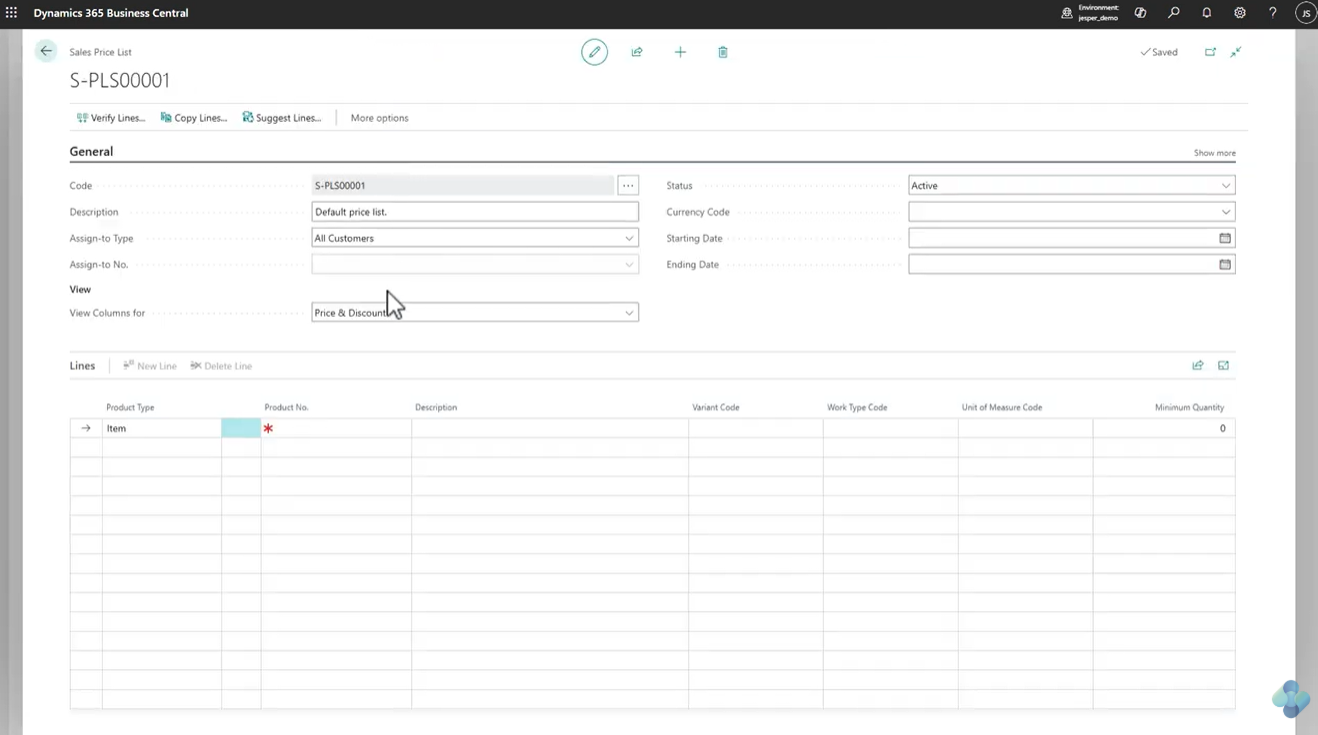
With the feature enabled, let’s move on to the fun part: editing the sales price list! We’ll go to the Sales Price List and open up the existing default sales price list. For this demo, imagine you’re offering a discount for bulk purchases. Let’s say that if a customer buys more than 10 desks, the price will drop from $1,000 to $800 per desk.
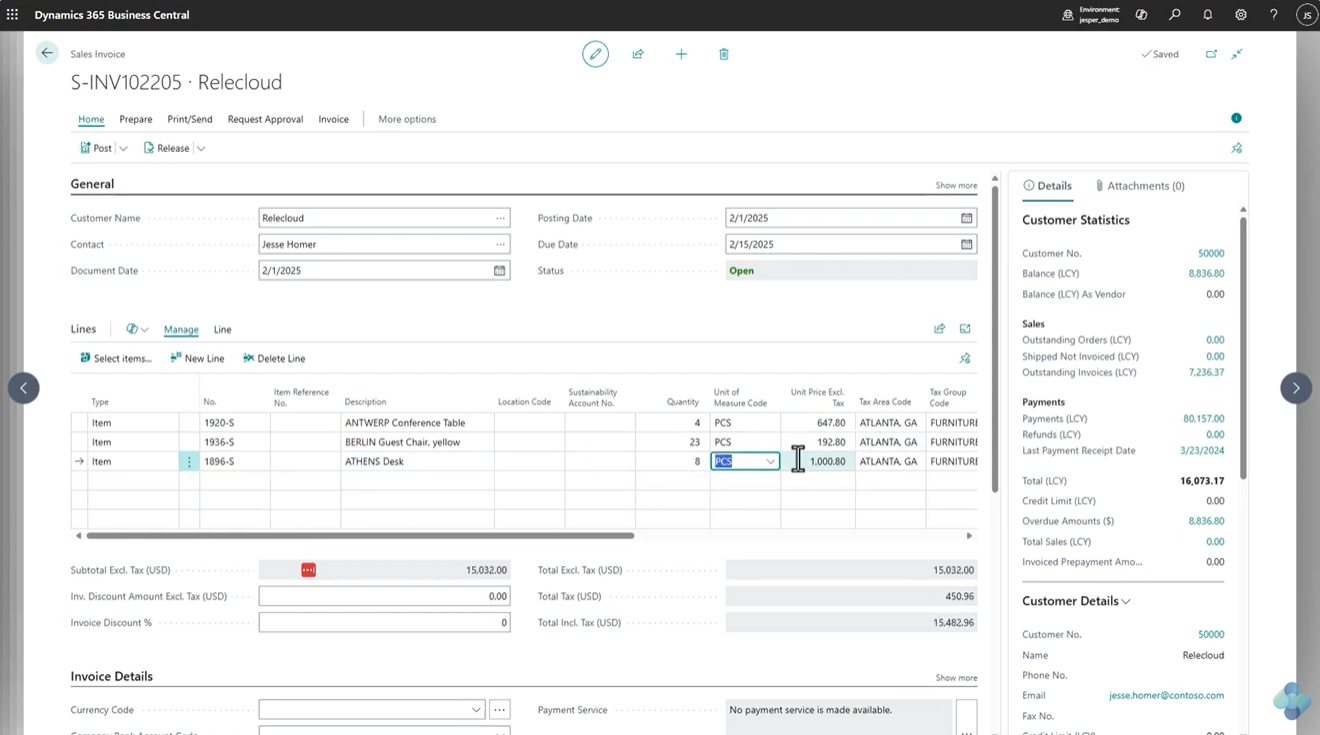
Once the price list is updated, we can quickly test it by creating a sales invoice. Initially, if we add 8 desks, the price remains $1,000 per desk. But when we increase the quantity to 10 desks, we see the price automatically adjust to $800. So far, everything is working as expected.
Introducing The Edit in Excel Button
Now, here’s where the new feature really shines. If we look at the top of the screen, you’ll notice a brand-new button: Edit in Excel. This wasn’t there before, and it’s the key to making price adjustments even easier.
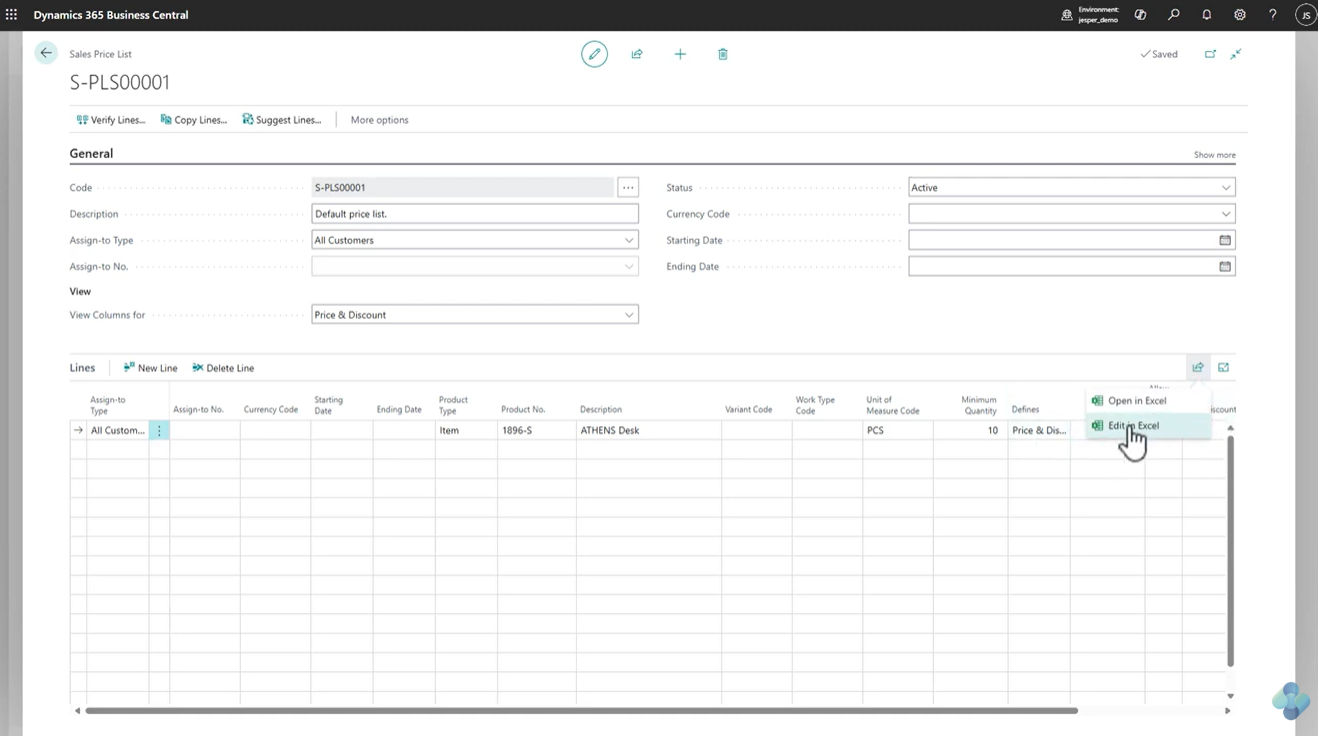
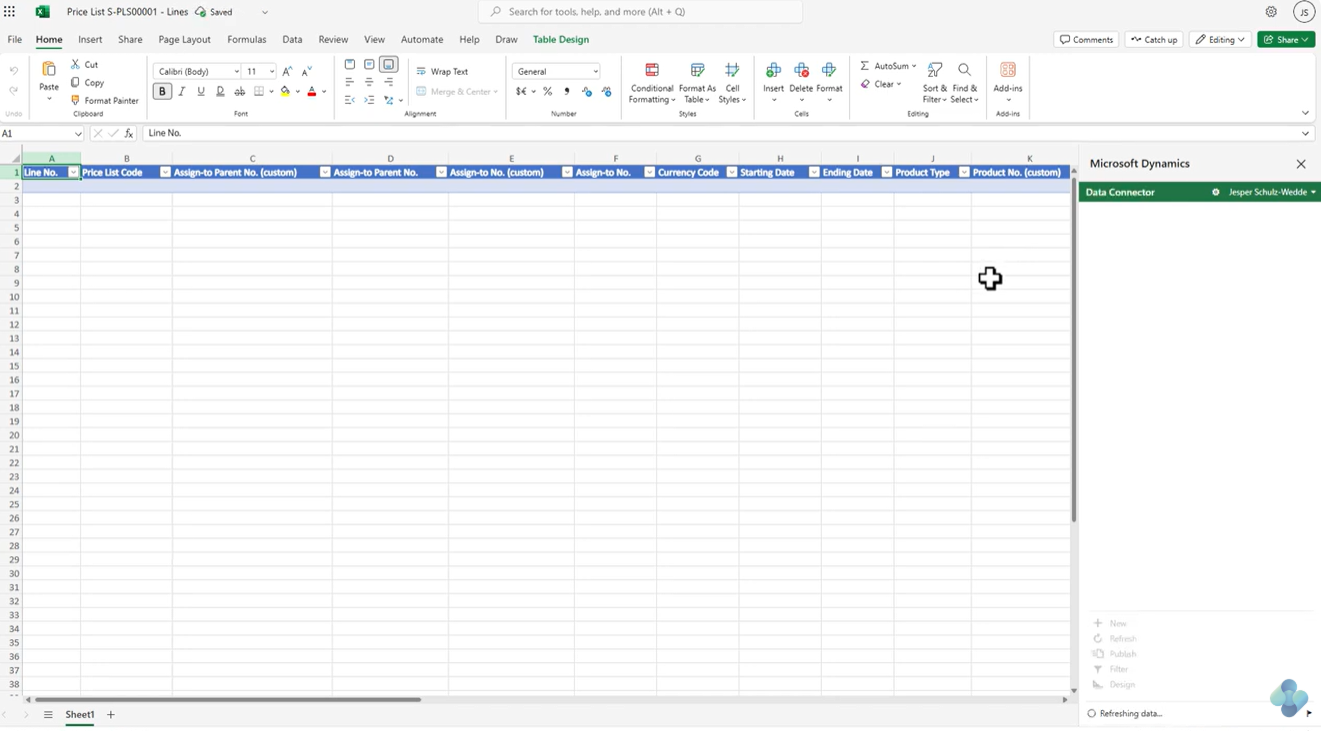
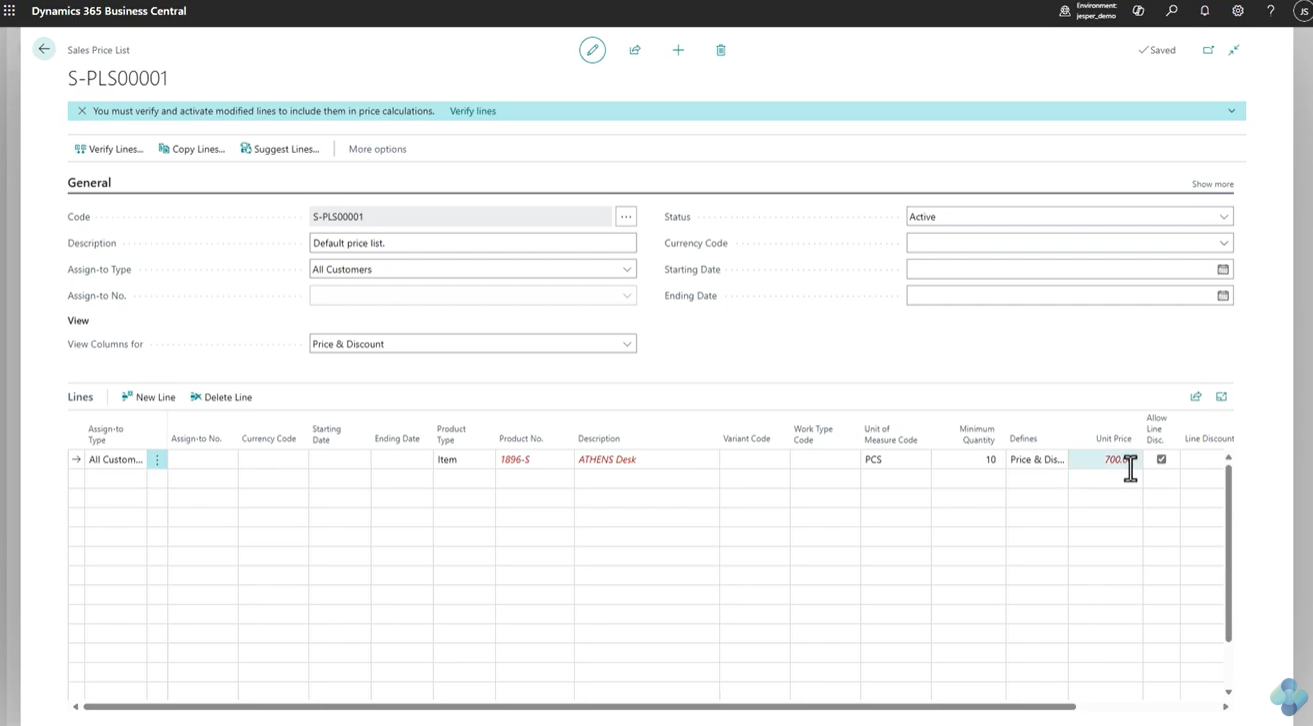
When you click the Edit in Excel button, Business Central creates an Excel spreadsheet that syncs directly with your data. In Excel, you’ll see all the pricing information, including the unit price. If you want to further adjust the price for example, dropping it to $700, you can do so directly in the spreadsheet. Once you’re done, simply click Publish, and the price in Business Central is automatically updated.
Refreshing your browser will show that the new price of $700 is now reflected in your sales invoice.
The Power of Community Feedback
What’s even more exciting about this feature is that it’s the result of strong community feedback. The idea for the Edit in Excel feature came from a request on Business Central’s Idea Portal, where it received 151 votes. Additionally, the idea was open to contributions from the developer community on GitHub. Stepán Sage, a dedicated developer, took the opportunity to contribute code to bring this feature to life.
And just like that, the feature is now part of the upcoming 2025 Wave 1 release. This is a great example of how feedback from Business Central users directly influences the product’s development.
Wrap Up
We hope this first episode of What’s Cooking in Business Central has given you a sneak peek at an exciting new feature coming your way. The Edit Sales Price List in Excel capability will make managing your sales pricing even easier and more efficient, and it’s just one of many new additions to look forward to in the upcoming release.