Overview
This post compares Business Central vs NAV features that matter in 2026. You will see how Teams, Copilot and Power Automate change daily work, and when each NAV version loses support.
Key Takeaways
- NAV 2016 support ended on 14 April 2026, NAV 2017 ends on 11 January 2027 and NAV 2018 ends on 11 January 2028.
- Business Central online connects to Microsoft Teams, but NAV has no Teams app.
- NAV 2017 offered a sales and inventory forecast, while Business Central adds late payment prediction, Copilot and agents.
- Business Central includes a built-in Power Automate connector, whereas NAV needed web services to link up.
- Teams, Copilot and agents need Business Central online, so on-premises users miss them.
- Check your Power Automate licensing before you build flows, because the cost depends on what each flow does.
Why Business Central vs NAV Features Matter in 2026
Business Central vs NAV features is no longer a like-for-like comparison. Microsoft stopped releasing new NAV versions after NAV 2018, so your system stays as it is today.
Business Central keeps improving. Microsoft ships two major release waves each year, and version 29 arrives in October 2026. Our Business Central 2026 release wave 2 preview shows what lands this month.
That gap matters because the newest tools depend on the cloud. Teams, Copilot and agents run on Business Central online only. So your choice of version decides which features your team can use.
NAV Support Dates You Need to Plan Around
Dynamics NAV follows the Microsoft Fixed Lifecycle Policy. Mainstream support has ended for every version, so extended support is all that remains. Extended support delivers security updates only, with no new features.
| NAV Version | Extended Support Ends | Status in October 2026 |
|---|---|---|
| NAV 2016 | 14 April 2026 | Ended |
| NAV 2017 | 11 January 2027 | Ends in about three months |
| NAV 2018 | 11 January 2028 | Ends in about 15 months |
Source: Microsoft Lifecycle Policy for Dynamics NAV.
After those dates, Microsoft stops releasing security updates, so your risk grows each month. Our guide to what NAV end of support means explains your options.
1. Work Directly in Microsoft Teams
Your team already talks in Teams. With NAV, you switch windows, find the record, take a screenshot and paste it into the chat. That routine wastes time and invites errors.
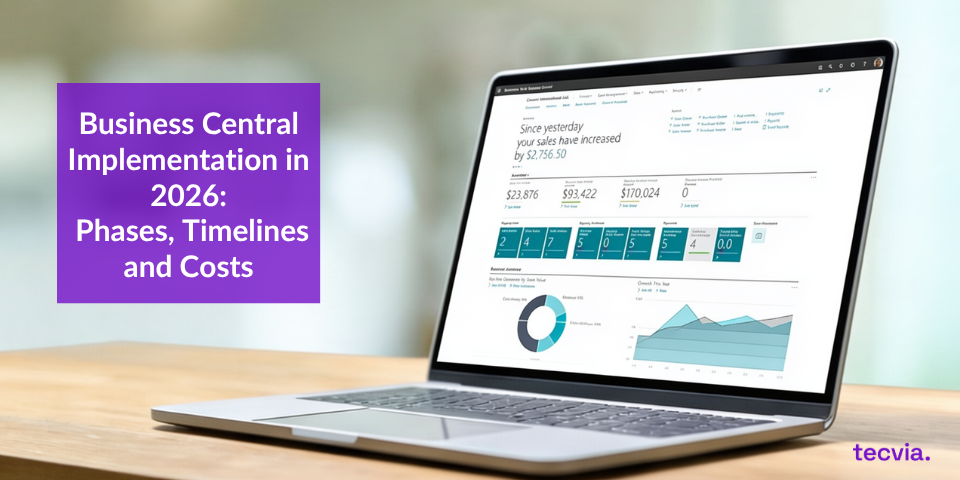
Business Central online has an app for Microsoft Teams. You can look up customers and vendors from any chat, then share the record as a card. Everyone in the conversation sees the same live data.
Microsoft documents several ways to use the app:
- Search for a customer and share their card, including fields such as balance and credit limit.
- Paste a record link into a chat, and Teams expands it into a compact card.
- Edit data from the card without leaving Teams.
- Add a Business Central tab to a channel or chat.
Colleagues still need Business Central access to open full record details. Permissions also control who can edit data.
Microsoft states that the Teams app cannot connect to on-premises deployments. See its list of features not available on-premises for detail, or read the Teams integration overview.
2. Use AI to Look Ahead
NAV 2017 introduced a sales and inventory forecast extension. It used Azure Machine Learning, and many NAV 2018 sites still run it. So forecasting alone no longer justifies a move.
Business Central goes further. It adds late payment prediction, cash flow analysis and a growing set of Copilot features. Microsoft lists them in its AI overview.
- Late payment prediction flags sales invoices that customers may pay late, so you can act earlier.
- Copilot answers questions about your data, summarises records and proposes bank reconciliation matches.
- Agents such as the Sales Order Agent and Payables Agent handle defined tasks, while a person reviews key steps.
For example, a Distribution and Wholesale team can use the Sales Order Agent to turn emailed orders into draft sales documents. Staff then review exceptions instead of keying every line.
Copilot comes with Business Central online at no extra licence cost. Agent usage may carry its own charges, so ask your partner how Microsoft bills it. Our posts on built-in AI in Business Central and the Sales Order Agent explain each tool in detail.
3. Automate Repetitive Tasks with Power Automate
How much time does your team spend on data entry, approval requests and report generation? These tasks are slow, and mistakes creep in.
NAV 2018 could link to Power Automate and Power Apps through web services. That link needed technical set-up and had limits. Business Central has a built-in Power Automate connector, so you can build flows with little or no code.
Consider an expense claim. An employee submits a Microsoft Form, and a flow creates the record in Business Central. The manager approves by email, and the finance team then receives a notification.
You can automate many other processes:
- Send a follow-up email when a customer payment arrives.
- Post a message in a Teams channel when stock for a key item runs low.
- Create a sales order when an order arrives through your website.
Purchasing teams benefit too. Manufacturing and Engineering businesses can route purchase approvals before stock runs short, as our post on slow purchase order approvals shows.
Check the Power Automate licence your flows need, because licensing depends on what each flow does. Microsoft also states that you cannot create workflows from Power Automate templates in on-premises deployments.
Online or On-Premises: Which Features You Get
Business Central comes in two deployment options. Online runs in the Microsoft cloud, while on-premises runs on your own servers.
Microsoft states that Copilot is available exclusively for Business Central online. The Teams app and Power Automate templates also stay online-only. So the answer to Business Central vs NAV features depends on where you run Business Central.
Our comparison of on-premises vs cloud ERP for UK SMEs sets out the trade-offs. It helps you decide before you plan the move.
What Upgrading from NAV Involves
Moving from NAV to Business Central is a project, not a button. Plan it in three steps.
- Review your NAV version, customisations and data to see what moves, what changes and what you can drop.
- Choose online or on-premises, because the best features need the online version.
- Plan data migration, testing and training, and use a sandbox before you go live.
Our Migrate from NAV page shows how we run these projects. You can also read our guides to upgrading NAV to Business Central and NAV data migration. A separate post on implementation mistakes shows what to avoid.
What This Means for Your Business
Business Central brings Teams, Copilot, agents and Power Automate into your daily work. NAV does not, and its support is ending.
Treat the dates as your planning deadline. A move takes months, so start well before your version loses support. Ask your partner for a written plan with cost and timescale.
Get Help Moving from NAV to Business Central
Tecvia helps UK businesses move from Dynamics NAV to Business Central. Get in touch with Tecvia to book a free review of your NAV system and a personalised demonstration.
You can also explore our Business Central features, learn how our implementation approach works or check current pricing. IT leaders may find our page for IT Directors and Managers useful too.
We serve Manufacturing and Engineering, Food and Beverage, Distribution and Wholesale, Life Sciences and Medical Devices and Technology businesses. Read why UK firms choose Tecvia as their Business Central partner.
Business Central vs NAV Features FAQs
When does Dynamics NAV support end?
Support depends on your version. Extended support for NAV 2016 ended on 14 April 2026. NAV 2017 ends on 11 January 2027, and NAV 2018 ends on 11 January 2028. After those dates, Microsoft no longer issues security updates for that version.
What can Business Central do that NAV cannot?
Business Central online adds the Teams app, Copilot, agents, late payment prediction and a built-in Power Automate connector. The older system has no Teams app or Copilot. However, NAV 2017 and NAV 2018 did include a sales and inventory forecast, so forecasting alone is not a difference.
Does Business Central work with Microsoft Teams on-premises?
No. Microsoft states that the Business Central app for Teams cannot connect to on-premises deployments. You need Business Central online, and each person needs a Business Central user account.
Does Copilot in Business Central cost extra?
Copilot comes with Business Central online at no extra licence cost. Agents may carry separate usage charges, depending on how Microsoft bills them. Ask your partner to confirm current costs before you switch features on.
Can I use Power Automate with NAV?
Yes, but only in a limited way. NAV 2018 could link to Power Automate through web services, and that link needed technical set-up. Business Central has a built-in connector, so you can build flows with little or no code. Licensing still depends on what each flow does.
How long does it take to move from NAV to Business Central?
It depends on your user numbers, data volume, customisations and connected systems. Tecvia gives you a timeline at the end of the Inspect phase, before we build anything. So start planning well before your support date.